 Ingest
Find Source Summary, Select from Pick List, Export Selected Decisions, and Open Current Source in New Tab by name. Source Summary opens in the inspector; clicking a count applies a removable filter.
If you can do it in Ingest, you can find it with ⌘K—whether the action has an assigned shortcut or not. Press ⌘K and search by name, alias, or category. Switch workspaces, find a folder, tag a keeper, edit metadata, organize files, or export without navigating menus.
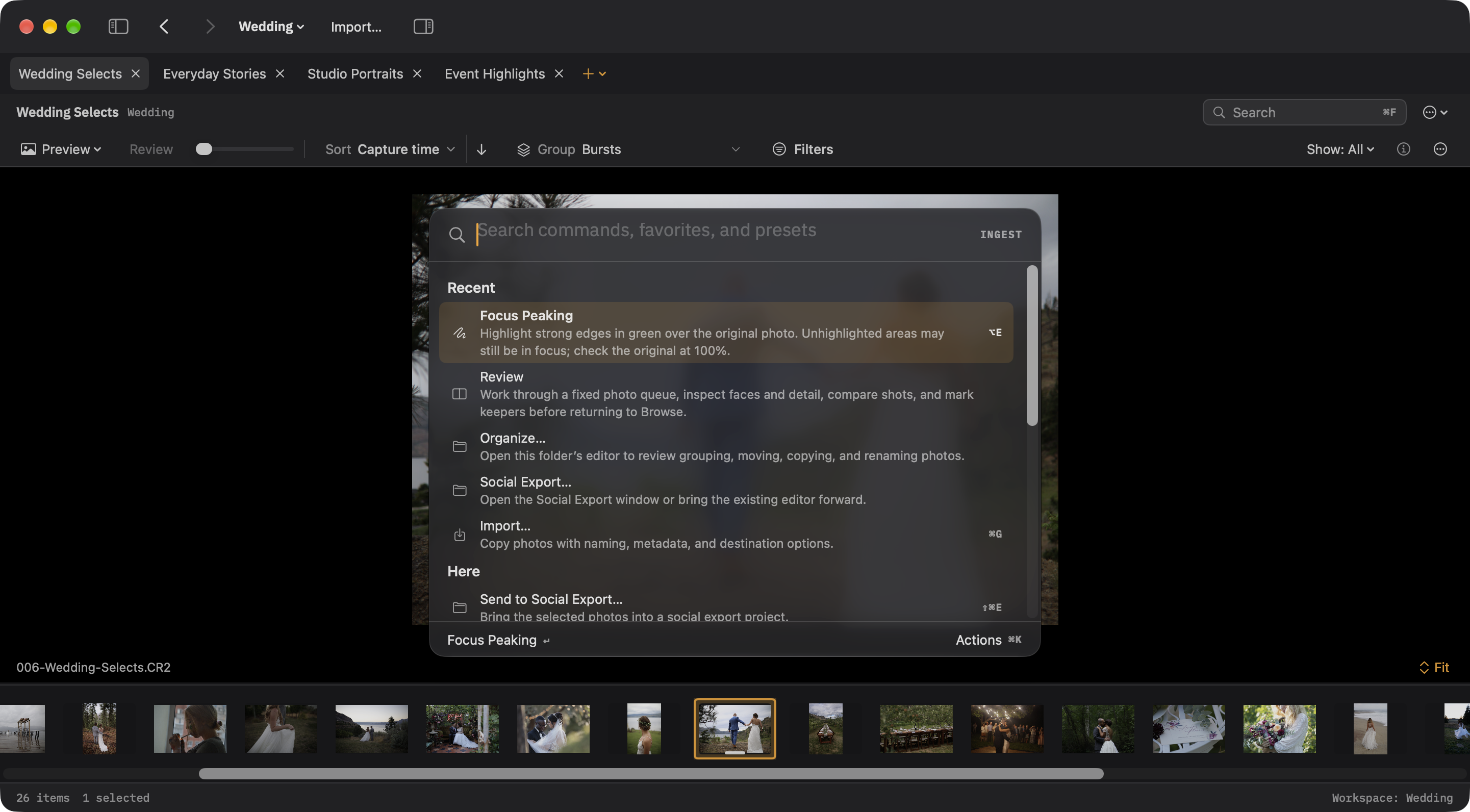
Inside the palette, ⌘K toggles Actions. Use the arrow keys and Return to choose Pin/Unpin, Copy Link, or Configure Shortcut. Esc closes Actions before it closes the palette. Configure Shortcut reveals that command in Settings; temporary card and recent-folder entries do not offer it.
The palette also lists the things that come and go: your favorites, workspaces, splits, metadata presets, actions, and recent folders. ⇧⌘P pins whatever is highlighted to the top of the list. ⇧⌘C copies a link that runs it, which is how the URL scheme is meant to be discovered.
To show the shortcut overlay, tap and release ⌘, then press it again and hold. A single long hold does not open it. Settings offers an enable switch and 600, 900, or 1,200 ms second-hold delay. Quick Tips can teach current custom shortcuts as you work; disable teaching or reset its learning in Browsing Settings.