 Ingest
Keep original filenames, or type names and insert readable variables in Import File Names or Organize. Advanced pattern exposes the same pattern as text. This reference explains the {…} tokens used in names and folders, and ; for finding fields in Metadata Assist.
Try {…}
Curly braces fill rename and folder variables. Edit the template and watch the filename. Semicolon finds metadata fields in Metadata Assist — that habit is shown in the app, not here.
How a template works
Curly braces rename. Anything in braces is replaced; anything else is kept as you typed it. So {yyyy}{mm}{dd}-{seqn} becomes 20260912-0001, and Wedding-{seq} becomes Wedding-1. Semicolon is a different habit — it finds metadata fields in Metadata Assist, not tokens in a name.
Some tokens take an argument after a colon. {seqn:4} sets the width of the number, {date:MMMM d, yyyy} sets a date format. To write a real brace, double it: {{ and }}.
Templates are used in four places: renaming during ingest, renaming in place with ⌘R, naming the subfolder that ingest creates, and filling in captions and titles in a metadata preset. Settings → Naming keeps your saved templates and shows a live example as you type.
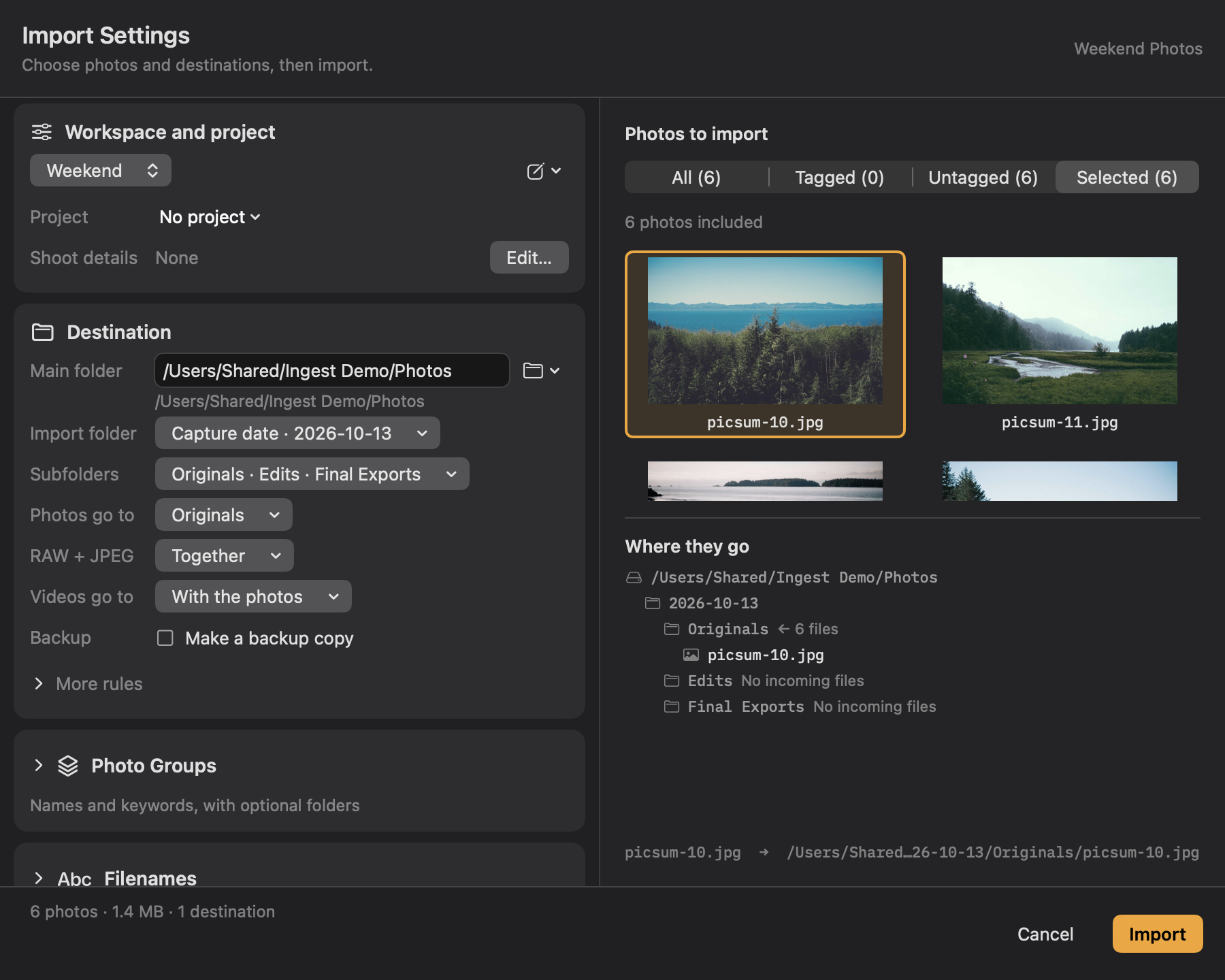
A template also decides letter case, what spaces turn into, and the case of the extension. The workspace naming editor preserves the spaces and separators you type. Review the resolved preview and any saved recipe’s case and spacing choices.
A token that has no value disappears, and takes the separator next to it with it, so a missing address does not leave a stray hyphen at the front of every name.
Every token
Insert Variable lists readable choices in workspace naming editors. Ask when importing inserts an answer such as Client; New Question… adds your own. Only answers used by names or metadata are requested at import. What do the variables mean? explains each variable, and clicking Photo Number in a name sets its starting number and digit width. Type { to search variables directly. Advanced pattern and other template editors also support the tokens below.
Numbers
| Token | Value |
|---|---|
{seqn} | The saved counter: per project during ingest, otherwise shared across jobs. See below. |
{seq} | A counter for this job only, starting at whatever you put in the start field. |
{frame} | The number the camera gave the file. DSC01206 gives 01206. |
{stack} | Which bracket set this photograph belongs to. Empty for photographs that are not in one. |
{stackframe} | Which frame within that set. |
All five take a width: {seqn:4} gives 0001. Widths from 1 to 12.
Legacy Social Export naming
The built-in Social Export editor was removed in Ingest 0.9.6. Use Send to Decks… to compose and export in Decks. Existing exported filenames are unchanged. Ordinary Ingest filename templates remain available.
Photo Groups and Organize
{group} is the group name, {groupnumber} its number (two digits by default), and {groupseq} the sequence within it (three digits by default). Explicit widths such as {groupseq:4} are supported. Named Photo Groups can use these during import without creating extra folders: {groupnumber:2} {group} {groupseq:4} can produce 01 Cocktail Hour 0001.jpg.
Within a saved shoot, group numbering continues across cards. Allocations remain reserved for retries; changing a group name or order does not rename existing files. A new shoot starts fresh. If the chosen filename or folder needs a group, assign remaining photos before importing.
{shoot} uses the shoot name. {input:key} uses a question’s internal identifier; the visual editor inserts it for you as Client, your question’s label. Missing required answers block import with an explanation.
The file itself
| Token | Value |
|---|---|
{base} | The original name without its extension. Takes upper or lower. |
{filename} | The same thing, under its other name. |
{ext} | The original extension. |
{folder} | The name of the folder the photograph came from. |
{dest} | The name of the folder it is going to. |
Import, task, and capture dates
| Token | Value |
|---|---|
{importdate:yyyy-MM-dd} | Import Date. Available for import names and folders; unavailable in Organize. |
{today:yyyy-MM-dd} | Today’s Date for the import or Organize task. |
{date:yyyy-MM-dd} | The capture date in any format you like. {date:MMM d} gives Sep 12. |
{yyyy} {yy} | Year, four digits or two. |
{mm} {dd} | Month and day. |
{hh} {mn} {ss} | Hour, minute, second. |
Capture Date and the year/month/day/time pieces read the file’s capture time, falling back to its modification date. For a containing folder, Capture Date uses the earliest photo date in the selection. Import Date and Today’s Date use the task’s date instead; Import Date can keep photographs taken across several days together.
The camera
These work in filenames. They are left out of the subfolder menu because a whole folder of photographs rarely shares one exposure.
| Token | Value |
|---|---|
{model} | Camera model, such as ILCE-7RM5. Job folder templates use a source photo’s camera model; Settings labels its sample camera when no source model is available. |
{lens} | Lens model. |
{iso} | ISO. |
{shutter} | Shutter speed, made safe for a filename: 1/500 becomes 1-500. |
{aperture} | f8. With {aperture:raw}, just 8. |
{fl} | 16mm. With {fl:raw}, just 16. |
{ev} | Exposure compensation: 0, +0.7, -1.3. |
Where it was taken
| Token | Value |
|---|---|
{address} | The job address, set in Ingest or with ⌘L, formatted for filenames using the chosen Spaces setting. The same address can fill a metadata template’s Property address prompt. |
{street} | The same value. |
{city} {state} {zip} | The rest of the address. |
The sequence number
During ingest, {seqn} uses the current project’s saved counter. A new project starts at 0001, and another card for that project continues where the first stopped. Outside a project, it uses the shared counter across jobs. Start at shows the next number and accepts an override. Different projects can use the same numbers.
The width comes from the zeros you type. 0001 in the start field gives four digits, so 7078 comes out as 7078 and 42 comes out as 0042. Leading zeros are what keep files in order when something sorts them as text.
Planning a job does not move the counter. Review the proposed names before copying. The counter is recorded as files are published, so an interrupted job can already have used numbers for its completed copies.
Settings → Naming shows the next sequence number and lets you change it. Review the starting number for the current project or job. Resetting or overriding a counter can reuse earlier numbers; the collision check still protects files already at the destination.
{seq} is the other counter: it starts wherever you say, for this job only, and it is the right choice when a client wants photographs numbered from one.
Examples
| Template | Result |
|---|---|
{seqn} | 7078.arw |
{yyyy}{mm}{dd}-{base} | 20260912-DSC01206.jpg |
{address}-{seqn} | 1428-Maple-St-7078.arw |
{date:yyyy-MM-dd}-{city}-{seq:3} | 2026-09-12-Seaside-001.jpg |
{base}-{stack}-{stackframe} | DSC01210-1-1.jpg, for the first frame of the first bracket set |
{model}-{fl}-{seqn} | ILCE-7RM5-16mm-7078.arw |
A combined RAW and JPEG / HEIF pair gets the same base name with the appropriate extensions, so 20260912-DSC01206.arw and 20260912-DSC01206.jpg stay together wherever they go.
Subfolders
Your workspace’s import settings can put each job in its own folder, named by the same kind of template. {date:yyyy-MM-dd} gives 2026-09-12, and {address} gives a folder per listing.
Subfolder templates cannot use the per file tokens, because a folder cannot have a different name for each photograph inside it. {seqn}, {seq}, {frame}, {base}, {ext}, {stack}, and {stackframe} are refused with an explanation rather than silently ignored.
When names collide
Ingest never overwrites a file and never quietly adds a suffix to make room. If two photographs would get the same name, or a name already exists at the destination, it says so before it starts and will not begin until you fix it.
The messages are specific: how many photographs would share a name, which name already exists, or that only the letter case differs. The hint is always the same, because the answer usually is: add {seqn} or {seq} so every name is unique.
Renaming in place has one extra case. If a name would not actually change, Ingest tells you rather than doing nothing and looking broken.
Metadata Assist and Quick Entry
Semicolon finds fields. ⌘’ opens Metadata Assist with explicit review before applying. Type ; to see your field options, pick one, then Tab to take it and fill or search. Read the complete guide.
Values you stage here (client, event, location, shoot date) can feed rename templates through curly-brace tokens such as {client}, {event}, {location}, and {shootdate}. Missing required shoot values block planning. These do not change camera capture timestamps.
Caption-code files are configured per workspace: UTF-8 TSV, a code followed by tab-separated replacements, normally invoked with =. Later files take precedence. Choose alternatives with #n; unknown or cyclic codes must be resolved before importing.
Press Q for the earlier Quick Entry syntax. Enter the line, review the proposed fields, then apply to the selection. The order does not matter and most of it is optional.
| You type | It means |
|---|---|
coast sunrise | Two keywords. Bare words are keywords. |
front yard, kitchen | With a comma anywhere in the line, each comma separated run is one keyword. So this is two keywords, not three. |
#family | A keyword, even when the word would otherwise mean something else. |
3* *** 3 stars | Three stars. 0* clears the rating. |
red r 🔴 | A color label. Also yellow, green, blue, purple, and their first letters. |
"First light at the pier" | The caption. Curly quotes work too, and a quote you never close runs to the end of the line. |
@Ecola State Park | Propose a descriptive place name, through the next comma or end of the line. Use Find place to explicitly choose a GPS map pin. |
/listing | Apply the metadata preset with that name. |
;addr | Expand a snippet. See below. |
t tag untag | Apply or remove a tag. Stars, colors, and keywords are independent. |
The one rule worth knowing: a word like red counts as a command only when its whole comma separated segment is commands. So red door, kitchen gives you two keywords, and kitchen, red gives you a keyword and a color. That is what lets you write ordinary English without escaping anything.
The same line works from a link, which is how an external script or a Stream Deck button can mark a photograph. See the URL scheme.
Snippets
A snippet is a short name that expands into longer text. Type ;addr in quick entry, a caption, or the keyword field, and it becomes whatever you defined, tokens and all.
The shipped one is ;addr, which expands to {address}, {city} {state}. Settings → Metadata → Text Snippets is where you add your own, and it shows you how quick entry will read the result while you are still typing it.
Snippets expand once and do not nest, and a name Ingest does not recognize is left alone rather than deleted. If two snippets share a name, the first one wins.