 Ingest
The inspector follows Grouping, Destination, Filenames, and Destination Preview. Source-folder subfolders are the default. Enable full paths when useful, review example filenames, then use Review Changes… to confirm Copy, Move, or Rename before execution.
Choose File → Organize… in Browse, or find Organize in the photo context menu or Command Palette. It opens a separate, resizable window. Browse keeps its selection, filter, and scroll position behind it.
Organize resumes the folder’s saved draft when available. Set its photo scope to All, Selected, or Filtered and choose whether to include subfolders. Use the inspector’s Action to choose copying, moving, or renaming, then add grouping levels or a recipe. Opening the editor does not change files.
Add or change grouping levels, make your own groups, and move photos between them. Grouping choices do not change the original files. Review the proposed filenames and destinations before applying Copy, Move, or Rename. Existing files are preserved; conflicts must be resolved before applying changes. Memory cards must be ingested first.
Once you edit your choices or accept a new setup, Ingest saves that work for the folder. Returning shows Resumed saved setup and its last-edited date. Start Over opens the setup chooser again; applying a new setup can be undone and keeps the history needed to recover earlier file operations.
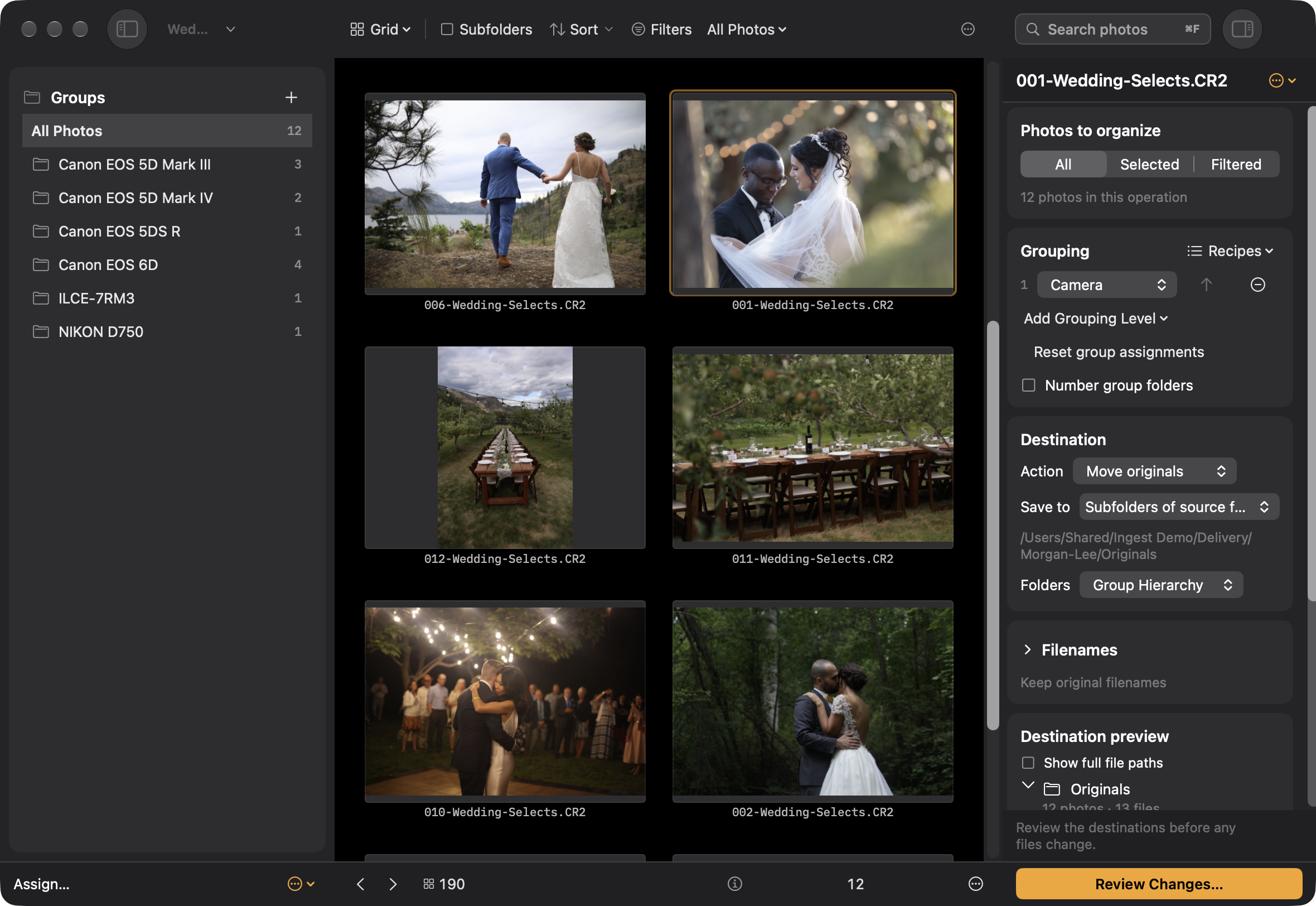
Save a recipe to reuse grouping and naming choices with another folder. Drafts and recipes stay on your Mac; recipes can travel with a settings export.