 Ingest
If you can do it in Ingest, you can find it with ⌘K. Search for an action by name: review photos, edit metadata, change a view, organize files, or export. Use the arrow keys to select a result and Return to run it. Commands that cannot run in the current context explain why.
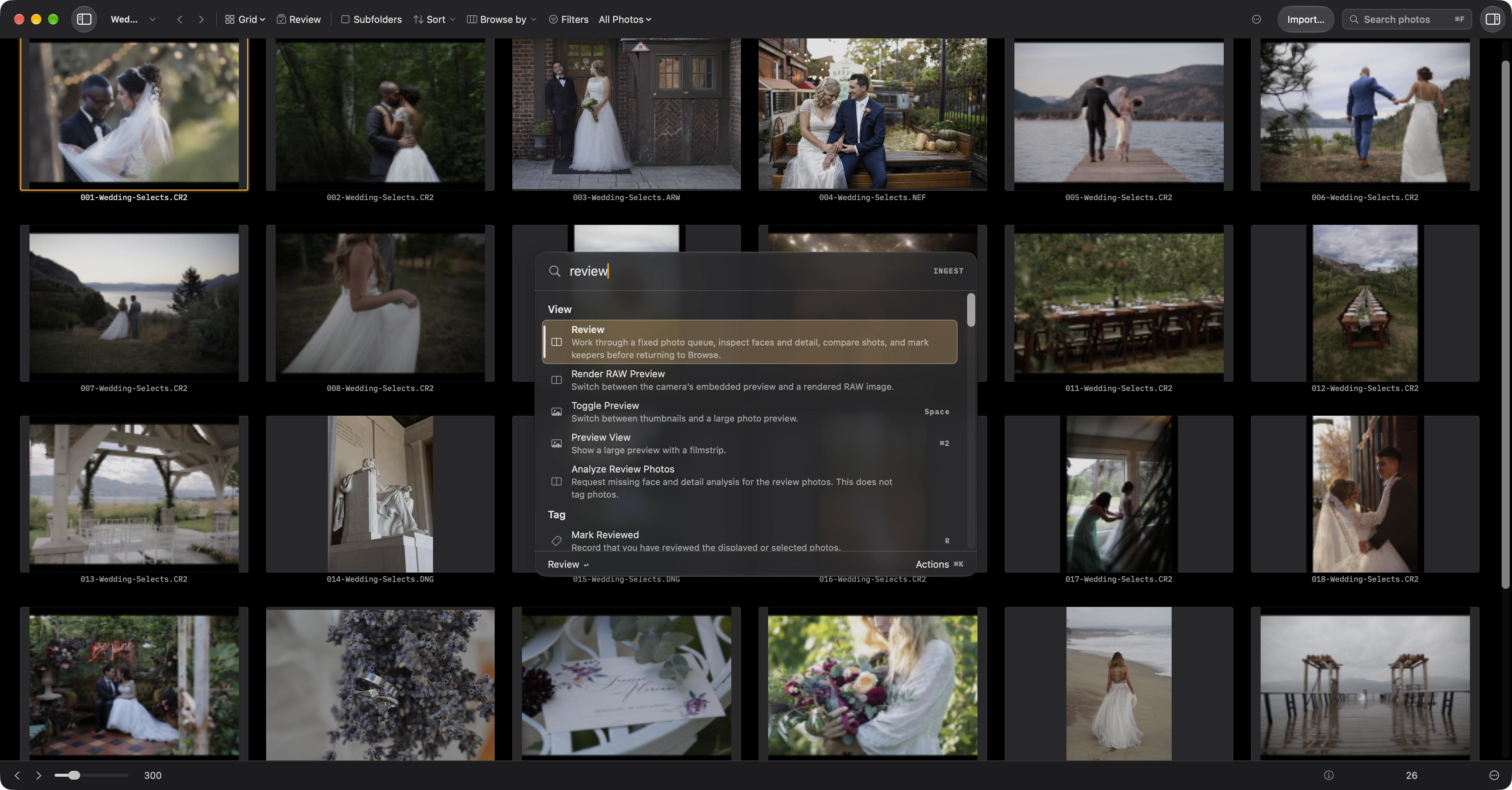
Commands with assigned shortcuts show them beside their names, so the Command Palette helps you learn the keys you use most. Commands that cannot run right now stay visible with the reason underneath, rather than vanishing and leaving you wondering. ⇧⌘P pins a command to the top for good.
Command descriptions explain what each action does. Settings → Command Palette controls descriptions, shortcut labels, and excluded commands. If you have hidden an action, you can restore it there.
The footer names the command Return will run. Click Actions or press ⌘K again to pin or unpin the highlighted command, copy its link, or configure its shortcut. Configure Shortcut opens that exact command in Settings. Copy Link keeps the palette open and confirms the copy. Esc closes Actions first, then the palette and returns focus to where you were.
Choose Find Folder… in the palette, or press ⇧⌘F, to search folders on your Mac and connected drives. ⌘F filters photos in the current collection. Show Left Sidebar, Show Right Sidebar, and Show Both Sidebars change the view for the current workspace.
Your favorites, workspaces, splits, presets, actions, and recent folders are all in there too, so the palette is a way to go somewhere as well as a way to do something. ? shows the shortcut sheet, and tapping and releasing ⌘, then pressing it again and holding, shows contextual shortcuts. A single Command hold does not open the overlay.