 Ingest
Choose Grid, Preview, Split, or List from the photo-view menu. ⌘1, ⌘2, and ⌘3 select Grid, Preview, and Split. Press I to cycle photo information. The inspector provides Histogram, Camera Details, Caption, Keywords, and Location; choose and reorder its sections in Settings → Sidebar Information.
A raw file is large and slow to develop. Many cameras also write a finished preview inside that raw file for their own screens. Ingest finds that JPEG and reads only those bytes. The embedded preview can be much smaller than the RAW file; its size and resolution depend on the camera and recording mode.
Embedded previews keep ordinary browsing fast, with no import step before you can look. If a file has no usable preview or paired image, Ingest can render the selected photo in a separate helper and cache the result. That first fallback preview is slower; whole cards are not rendered in advance.
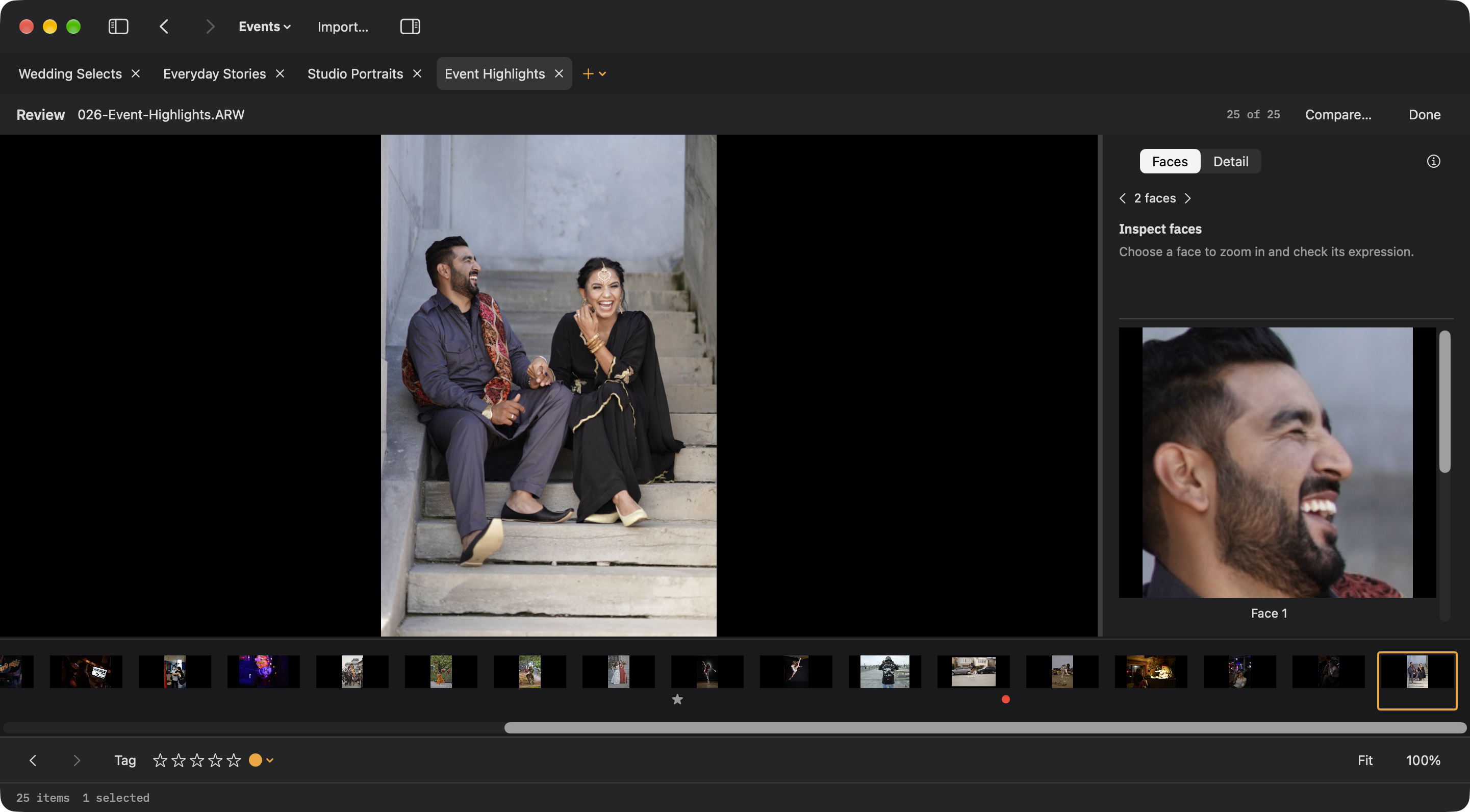
Arrow keys move, ⇧ extends the selection, and ⌘ with an arrow moves the focus ring without disturbing what is selected. ⌘+ and ⌘- resize the thumbnails, and so does a pinch.
Sorting and filtering
Sort controls photo order. Browse by chooses an ordered hierarchy such as Day → Camera → Lens, which places photos under headings without filtering them. Selected dimensions stay together at the top of the checklist; drag or use the reorder controls to change their order. Stacks collect related burst, bracket, similar, or paired photographs. While browsing under headings, click the group bar or a heading to jump to another group; [ and ] move between groups. These viewing choices are separate from the named Photo Groups used during import.
Left and right sidebar buttons have matching View-menu and command-palette actions. Each workspace remembers visibility and resized widths. Tab and Shift-Tab move keyboard focus through controls. Focus Mode hides surrounding controls temporarily, while command-palette access remains available.
Show photos in subfolders stays beside the source name, shortened to Subfolders in a compact window. The View menu and command palette share the same setting; search for “subfolders” or “recursive.” Ordinary folders start with it off. Camera subfolders are always included, and Apple Photos omits this filesystem control. Single-click a sidebar folder to navigate; Command-click opens it in another tab.
Photo Background in Settings → General offers Appearance Default, Black, Dark Gray, Medium Gray, Light Gray, and White. A workspace can use the app default or its own override. Thumbnail Size shows a readout in Grid; Preview has Zoom controls.
Browse, Apple Photos, and Organize share photo controls appropriate to each context. Sort shows the current criterion and has a separate direction button. File views include capture time, filename, rating, color label, date modified, and file size; Apple Photos adds album order and Organize adds group order. Import Settings has its own photo scope and output preview.
Show chooses All, Tagged, Untagged, or Selected photos. Filters opens the editor for ratings, color labels, file kinds, and metadata. An active-filter summary explains what is limiting the view, and Clear All removes the filters. Choosing All in Show does not clear other filters. Saved views live in the filter editor, and ⇧⌘S saves the current filter as a new one.
Photographs are ordered by when they were taken, down to the fraction of a second, so two cameras at the same event interleave correctly. A folder remembers the order you left it in.
Which files are supported, and what happens to the rest, is on the support page.