 Ingest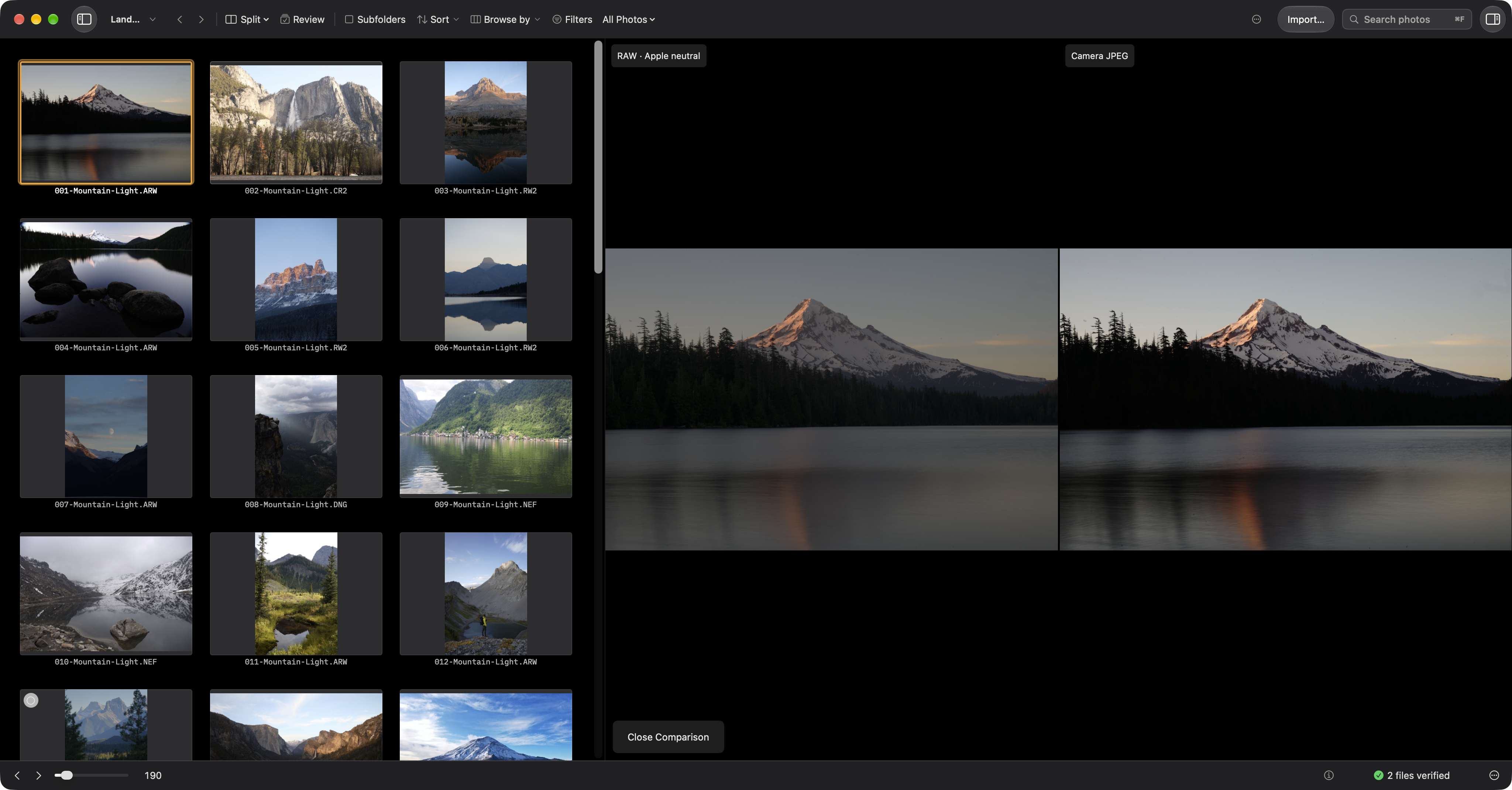
The inspector starts with a tone histogram of the displayed preview. In Settings → Sidebar Information, choose the sensor histogram for supported RAW files. Supported Bayer and X-Trans sensor data, including DNG files with these mosaics, is read directly with black levels subtracted. White balance, demosaic, and rendering tone curves do not affect this histogram.
RGB curves remain visible by default. Use Combined / RGB / R / G / B to combine curves or isolate a channel. An individual RAW channel shows its headroom and clipped percentage. Both green photosite populations are combined, and channels are normalized so green does not dominate simply because the sensor contains more green photosites. Use Log (stops) / Linear to change the RAW scale (also available by right-clicking). The default runs from −16 stops to the white level at 0; its midpoint is −8 stops, only 0.39% of sensor saturation. JPEG charts use rendered tone values from 0 to 255, so horizontal positions in the two charts are not directly comparable. White balance and tone processing can make the JPEG reach white before the sensor saturates. Saturated values appear in a separate area at the right edge.
Highlight headroom measures the brightest channel’s 99.9th percentile against the camera/file white level, reducing the effect of a few hot pixels. Once 0.1% of any channel clips, the line changes to Clipped: 2.4%, for example. This percentage describes the channel with the highest clipped proportion, not a demosaiced pixel count. Clipping below the threshold still appears at the chart’s right edge. An entirely black signal shows “Headroom unavailable.” The measurement covers the active sensor area, independent of display crops.
JPEG selects a linear histogram of the paired JPEG, or the largest readable embedded JPEG when no readable JPEG companion exists. The source label’s tooltip identifies which file or preview is used. JPEG histograms do not report RAW highlight headroom.
Render RAW Preview, below the main photo or in the Command Palette, renders only the selected photo. The existing image stays visible while it loads. The photographic rendering includes camera white balance; it remains separate from the unrendered sensor histogram. Choose Show JPEG Preview to return.
Enable Show clipping on image to mark clipped regions for the selected channels and histogram source. RAW uses sensor saturation; JPEG uses full-resolution rendered values at 255. Each marker can cover several photosites so small clipped areas remain visible when zoomed out. Markers follow zoom, pan, orientation, and supported display crops. Camera JPEG crops or lens corrections can shift alignment with sensor regions. The overlay label identifies its source, including JPEG fallback. This display does not change exposure or the image file.
Compare RAW and JPEG in the command palette opens the same photo’s labeled RAW and JPEG previews side by side, with linked zoom and pan and full-resolution loading for 100% inspection. The RAW histogram remains available in the inspector. Close Comparison returns to the single preview. Navigating to another photo returns to ordinary preview loading. This differs from C, which compares multiple photographs.
If RAW data cannot be read, Ingest labels the fallback JPEG histogram and explains: “Couldn't read raw data for this file. Showing the JPEG histogram instead.” If no JPEG can be read, the module shows an unavailable state. Other rendered formats retain their own source labels. Unsupported sensor layouts and RAW compression variants use this fallback.
Calculation runs in the background and is cached by file revision. Loading holds the chart’s space; results fade in when ready. RAW rendering and analysis pause during ingest. These controls inspect exposure and rendering; they do not adjust exposure or assign ratings.