 Ingest
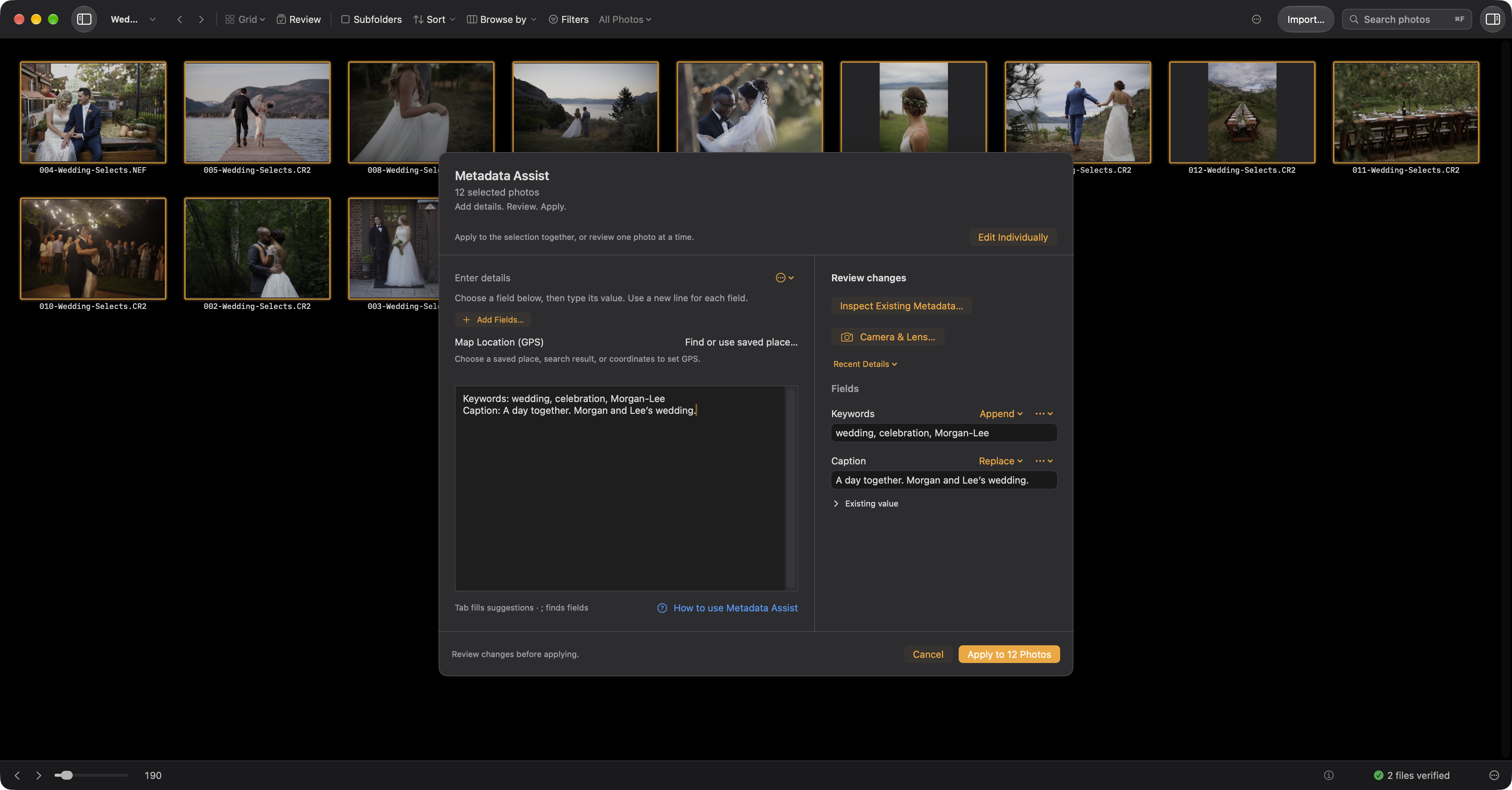
Edit Metadata… opens Metadata Assist. Choose Edit Individual Fields… inside it for the detailed field editor. Use Changes returns that draft to the review panel; only Apply applies the reviewed changes.
⌘’ opens Metadata Assist for selected photos or the current import. Choose Keywords, Caption, or Location to begin, or type ; to see your field options, pick one (a fragment like ;lo narrows the list), then Tab to take it and fill the value or search for a place. Separate keywords with commas.
;
;lo
;capt
Recognized fields appear immediately in the review panel. Correct a value, add another field, inspect existing values, or change its operation. Keywords append by default; most other fields begin with Replace. Fill Empty and other operations depend on the field. Unrecognized input and caption-code errors remain visible until resolved.
Keyword completion and recent details
Previously applied or staged values are remembered locally. Type a prefix and press Tab to fill the highlighted suggestion; arrow keys choose another result and Escape dismisses suggestions. Keywords complete individually after commas and also use Ingest’s existing keyword history. Caption and other field histories stay separate.
Recent values recalls an individual field or map location; each field’s options menu also lists recent values. Use Last Details replaces the current review draft with the last applied set. It does not apply anything. Canceled and failed drafts do not enter history; the last 20 distinct values per field and 20 map locations are kept locally.
Place names and map pins
A typed Location supplies IPTC place text and leaves GPS unchanged. Type ;loc, choose Map Location, and press Return to search Apple Maps. Search saved places or addresses, or paste coordinates or an Apple Maps coordinate link. Select a result to review its pin; typing focus returns to the writing area. Save Location… stores a named place for reuse across the location pickers, including Apple Photos. Saved places work offline. Right-click a saved result to remove it. Saving a location does not write to photos.
With one photo selected, Previous and Next browse the current order while keeping separate unsaved drafts. For a multiple selection, choose Edit Individually to work through that selection, or Edit Together to return to its batch draft. Apply saves and keeps Assist open; Apply & Next saves and advances only after success. Close discards unapplied drafts. When opened from Import Settings, Metadata Assist stages details for imported copies.
Prepare an import
Stage client, event, location, and shoot date for naming and folder templates. Use for Import updates the plan; copying is still a separate action. Metadata is written to verified destination copies. Shoot date does not rewrite capture timestamps. Projects retain shared details across cards; otherwise choose Keep details for the next card. Explicit per-photo edits take precedence.
Caption codes and copying
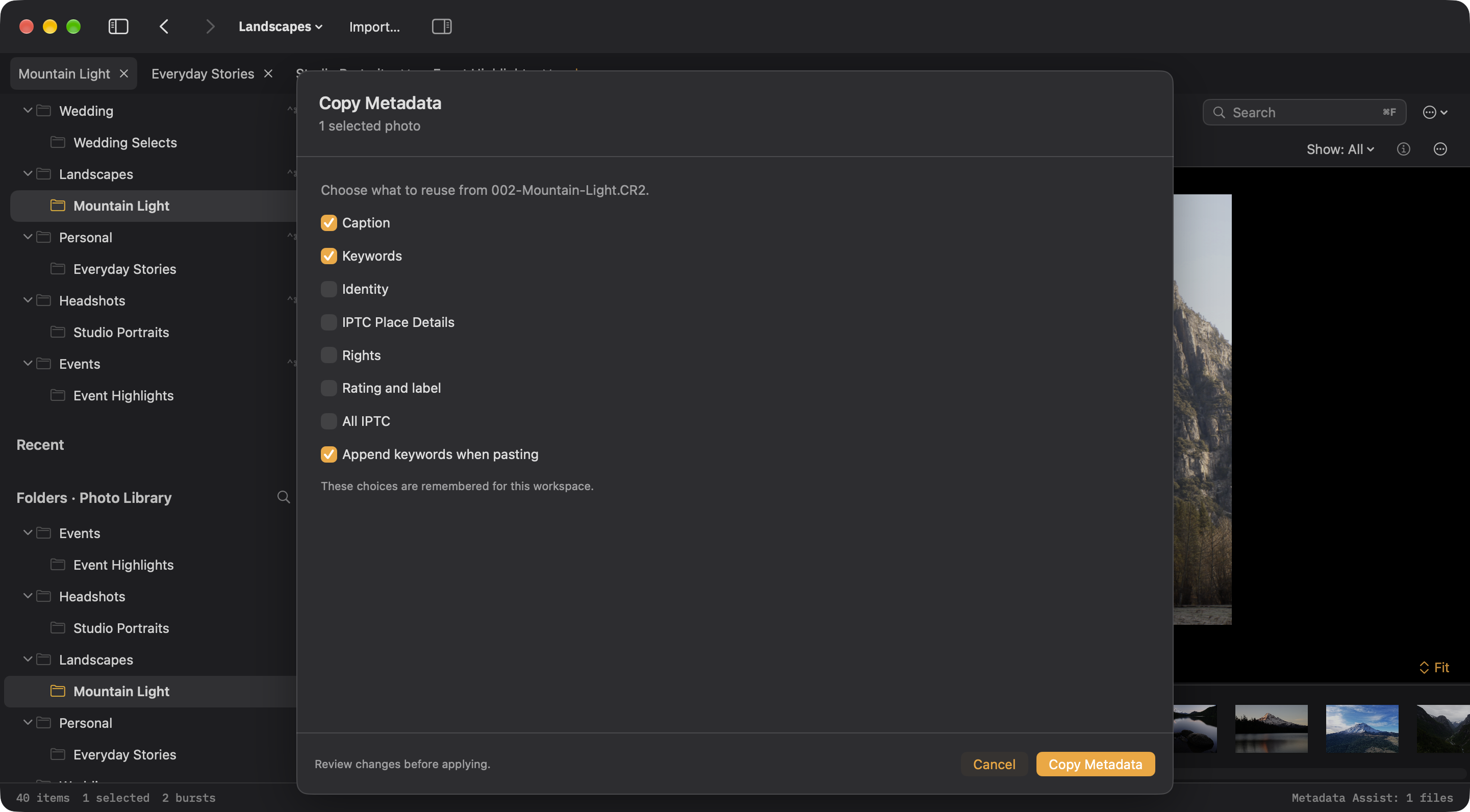
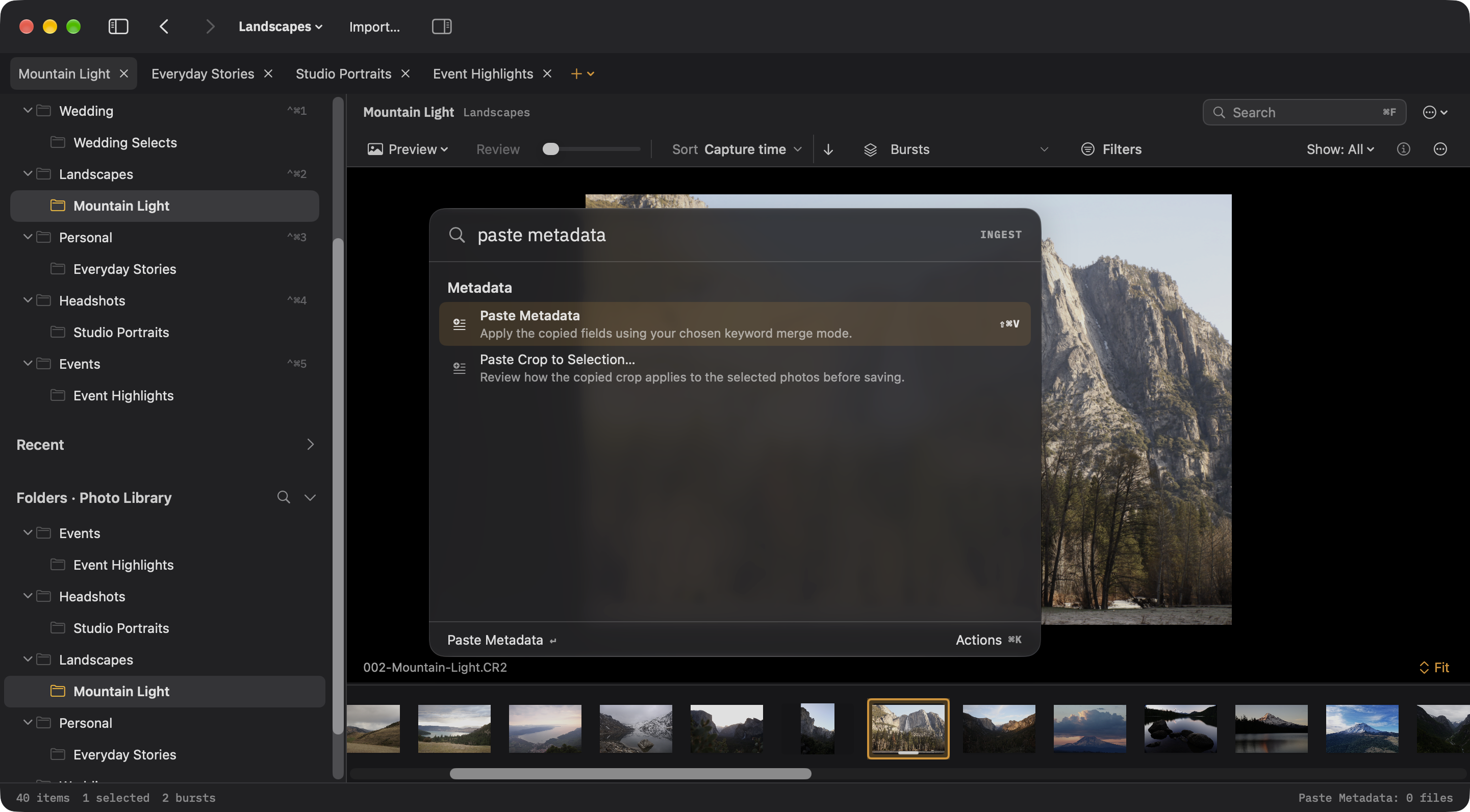
Workspace caption codes expand short codes into known text, using UTF-8 tab-separated files and normally the = delimiter. ⇧⌘C copies selected metadata groups; ⇧⌘V pastes those groups for the current selection. Copy choices are remembered per workspace.
Add details. Review. Apply. Typing alone writes nothing. Metadata Assist does not invent captions or infer instructions from prose. Cancel discards the draft. Its built-in How to use Metadata Assist guide provides examples.
Q retains the earlier Quick Entry syntax inside the same reviewed editor. See the syntax reference.