 Ingest
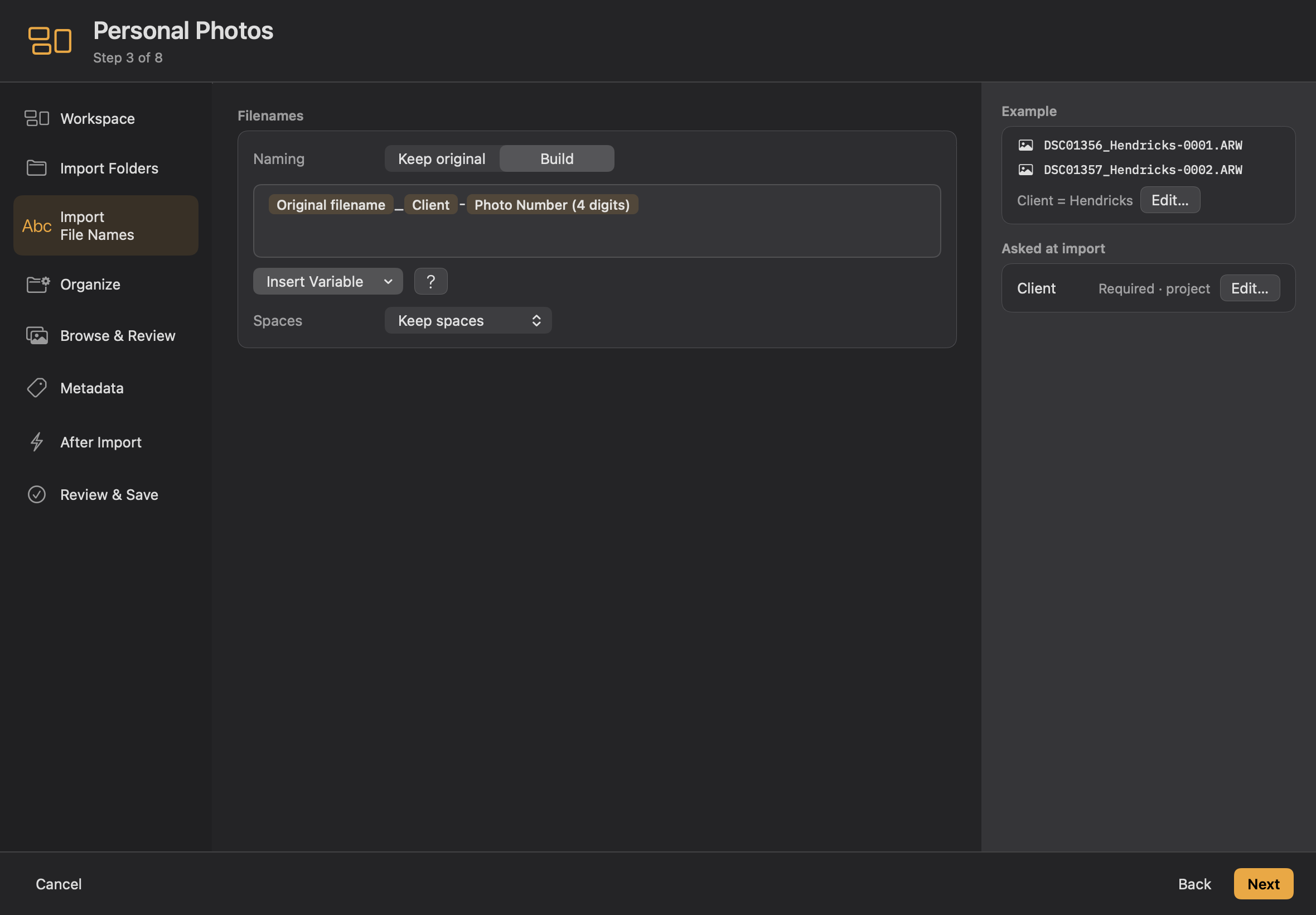
Type names and insert variables
In Import File Names or the separate Organize setup, type ordinary text and choose Insert Variable. Type { to find a variable directly; choose a suggestion with Return. Variables appear as readable pieces in the same text field. Choose your own spaces and separators.
Advanced pattern exposes the same pattern as text. Custom Import settings use this editor too. Check the resolved preview before applying names.
Choose the right date
Import Date uses the import’s date, so photos taken over several days can share one import folder. Today’s Date uses the task’s date. Capture Date uses the photograph’s date; a containing folder uses the earliest date in the selection. See the date reference for exact tokens and fallback behavior.
Renaming happens during an ingest, or in place afterwards with ⌘R. ⌥⌘R re-sequences what is on screen, which is how you close the gaps in the numbering after throwing half a shoot away.
Every rename records the original filename inside the file, so Undo Rename can put the old names back later, even in a folder you opened fresh.
Set Photo Number options
Insert Photo Number, then click it in the name to choose the starting number and digit width. One digit means no padding; larger widths add leading zeros. Photo Number continues across imports, with a project keeping its own count. The separate photo-number-in-this-import variable starts within the current import. Review the resolved example before copying.
Choose What do the variables mean? for definitions. Under Ask when importing, select a question or add New Question…. Only questions used by your names or metadata template appear at import.