 Ingest
Browse is the main workspace. File → Organize… opens its independent editor. File → Send to Decks… sends selected still photos to the separate Decks app. Both actions are available through photo context menus and the command palette.
Choose a workspace
The window toolbar and Workspace menu share the workspace chooser. Set Open at Launch separately from your active workspace. Control-0 selects Basic; Control-1 through Control-9 select assigned workspaces. Focus Mode (F) hides surrounding controls without changing saved panel preferences; ⇧F fits the photo.
Create a workspace
A workspace remembers the setup for a kind of photography. New Workspace… offers Set Up Manually for direct section navigation or Use Workspace Builder for guided steps. Both use the same workspace settings with explicit Save and Cancel; the chosen experience stays with an open draft. Save keeps the workspace and its new supporting templates and actions together; Cancel leaves them unchanged.
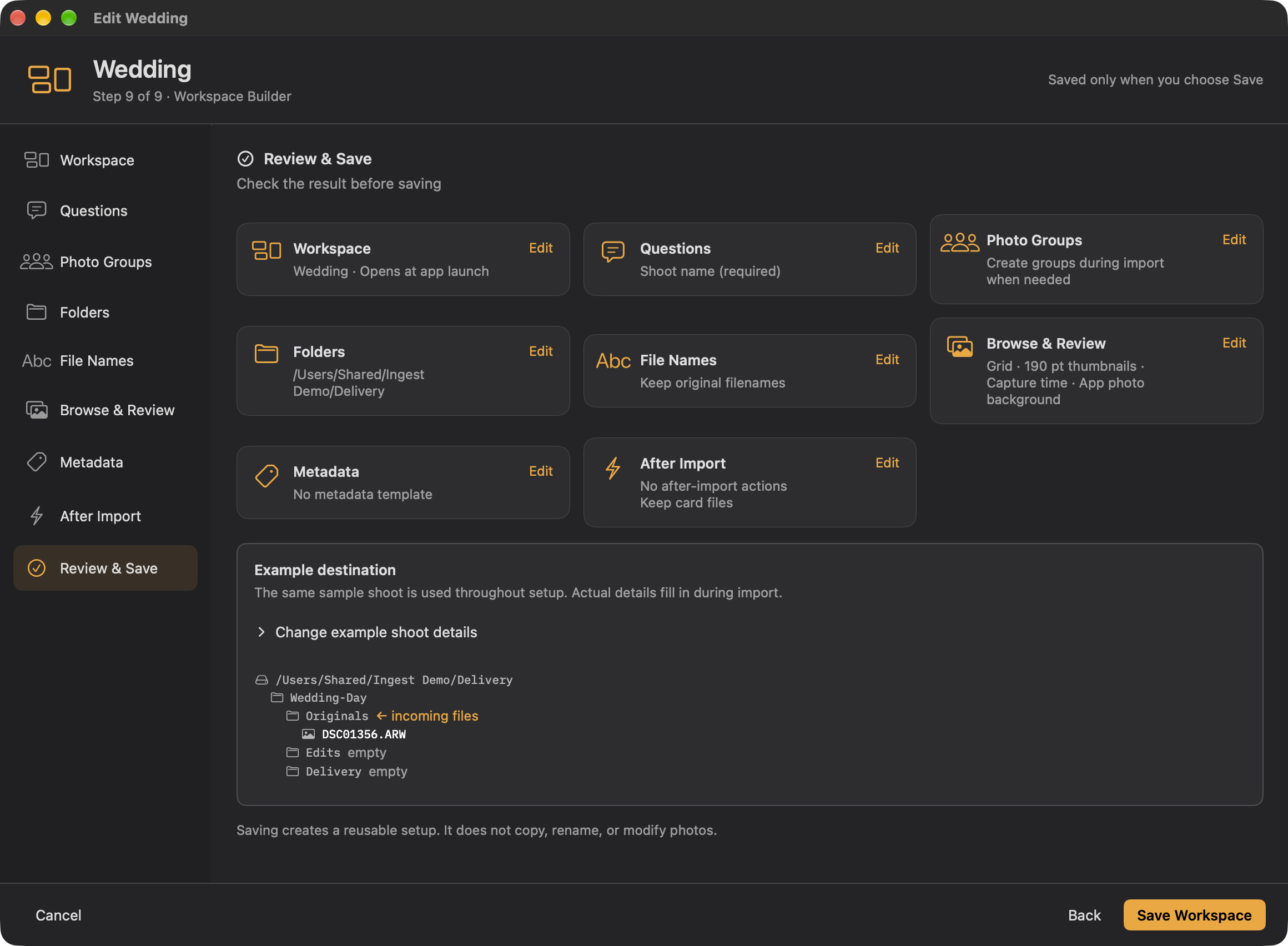
The nine sections are Workspace, Questions, Photo Groups, Folders, File Names, Browse & Review, Metadata, After Import, and Review & Save. Optional sections can be skipped. Basic, Events, and Headshots offer starting points when creating a workspace.
For a first workspace, choose its name and main destination, keep original filenames, then review and save. New workspaces leave photo groups and actions off, use the app’s photo background, and retain card files. Use Workspace applies the saved setup; neither that button nor Done starts an import.
Questions collect details such as Client or Event. You can add questions later; workspaces are always editable. Project answers can be reused across a job; shoot answers belong to one session. The builder uses one clearly labeled sample shoot across folder, naming, and metadata examples. Edit the sample answers to understand the result. Multiple Folders begins blank, and Photos go here chooses the receiving folder separately from its name.
Review and save
Review & Save summarizes folders, names, metadata operations, and actions, with Edit links back to their sections. Connect an external destination while setting it up so Ingest can identify it; reselect the folder after renaming its drive. Appearance and review choices can use app defaults or workspace-specific values.
Camera matching and Apple Photos
⌃0 selects Basic; ⌃1 through ⌃9 select assigned workspaces. Camera matching can choose a workspace when a card opens; a workspace chosen by hand takes precedence. Apple Photos has both a global switch in Settings → General and a switch in each workspace’s Workspace section. Both must be enabled for Photos controls to appear.
Custom questions, variables, and folder structure
Add questions for details such as Client, Event, or Shoot name. In Folders, File Names, and Metadata, insert those answers as reusable pieces. Review the live examples using the builder’s sample answers. Choose the receiving folder with Photos go here; supporting Edits or Delivery folders can start empty.
A project retains shared job details. The same shoot continues photo-group numbering across cards; a new shoot starts fresh. Keep Photo Groups separate from folder grouping: using a group in a name or keyword does not require a subfolder. Review import scope and numbering before starting the next card.